1. What is Encryption Software and How Does it Work?
At its core, data encryption software takes your readable files (plaintext) and runs them through a complex mathematical algorithm, turning them into scrambled, unreadable data (ciphertext). Without the correct password or decryption key, this data appears as random gibberish to anyone who intercepts it.
Today, the industry standard is AES 256 encryption explained simply as Advanced Encryption Standard with a 256-bit key length. This level of security is mathematically unbreakable with current computing technology and is utilized by banks, governments, and the military.
Software vs Hardware Encryption
When researching the best disk encryption, you will encounter two approaches:
- Hardware Encryption: Built directly into the physical drive itself (like a self-encrypting SSD). It is fast and independent of the operating system, but typically more expensive and harder to manage for average users.
- Software Encryption: Relies on programs installed on your OS to encrypt data. It is highly accessible, often cheaper (or free), and provides granular control over individual files or folders. This guide focuses primarily on software encryption methods.
2. Core Encryption Methods: Breaking Down Your Options
Not all encryption is created equal. Depending on your needs, you can choose between encrypting your entire hard drive, creating hidden virtual vaults, or simply locking specific folders.
Method A Full Disk Encryption (FDE)
FDE encrypts every single bit of data on your hard drive, including the operating system itself. When your computer is off, the data is entirely inaccessible.
- Best for: Laptops that travel, enterprise compliance, comprehensive security.
- Difficulty: Medium (Setup requires caution to avoid locking yourself out).
- Common Tools: BitLocker (Windows), FileVault (Mac).
Method B Virtual Encrypted Volumes (Containers)
This method creates a single encrypted file that acts like a virtual hard drive when mounted. You open it with a password, and a new drive letter appears where you can drag and drop files securely.
- Best for: Hiding specific large archives, advanced privacy, plausible deniability.
- Difficulty: Hard (Requires understanding volume creation and mounting).
- Common Tools: VeraCrypt, TrueCrypt (deprecated).
Method C File and Folder Level Encryption
This targets specific files or directories rather than the whole drive. It is lightweight, fast, and allows you to encrypt data on-the-fly, often integrating with cloud storage for secure backups.
- Best for: Everyday users, securing individual documents, cloud syncing, quick access.
- Difficulty: Easy (Often drag-and-drop or right-click interfaces).
- Common Tools: Folder Lock, AxCrypt.
3. At a Glance: Encryption Methods Comparison
| Method / Tool Type | Difficulty | Security Scope | Ideal User |
|---|---|---|---|
| Built-in FDE (e.g., BitLocker) | Medium | Entire Drive | Corporate users, laptop travelers |
| Open-Source Volumes (e.g., VeraCrypt) | High | Containers / Drives | Privacy enthusiasts, tech experts |
| File/Folder Lockers (e.g., Folder Lock) | Low | Specific Files/Folders | Home users, small businesses, cloud users |
| Editorial Verdict: For systemic device theft protection, use Full Disk Encryption. For protecting personal files from snooping family members, colleagues, or cloud breaches, File/Folder level software is significantly more practical. | |||
4. Use-Case Guides: Securing Specific Environments
Hard Drive Encryption Software for External Drives
Portable storage is easily lost or stolen. When evaluating external drive encryption software, portability is key. You need a solution that lets you open the encrypted files on different computers without requiring the host PC to have the software installed. Tools that create "portable lockers" on the USB drive itself are essential here.
Best Encryption Software for Business and Enterprise
Enterprise encryption software demands different features than home use. Centralized management, key recovery (in case an employee leaves), and compliance with regulations (like HIPAA or GDPR) are critical. While military grade encryption software (AES-256) is standard across the board, businesses should look for tools that support secure file sharing via public/private keys rather than shared passwords.
5. Tools We Tested: Reviews & Top Picks
We evaluated the top software options based on encryption strength, usability, feature set, and reliability. Here are our independent assessments.

Folder Lock 10
Platform: Windows | Encryption: AES-256 on-the-fly | Developer: NewSoftwares.net
Why we recommend it:
In our testing, Folder Lock 10 offered the most frictionless experience for non-IT professionals. While VeraCrypt requires mounting virtual drives, Folder Lock allows you to simply drag and drop files into secure lockers. We particularly appreciate its "stealth" capability, which uses a kernel-level driver to make locked folders completely invisible to Windows Explorer, even in Safe Mode.
It also solves a modern problem: cloud backup. It integrates seamlessly with Dropbox, Google Drive, and OneDrive, syncing encrypted files across devices without exposing plaintext data to cloud providers.
Best For:
-
 Quickly hiding/locking local folders
-
 Creating portable encrypted USBs
-
 Syncing secure data to the cloud
Not Ideal For:
- Full operating system encryption
- Mac-only environments
- Users seeking open-source code
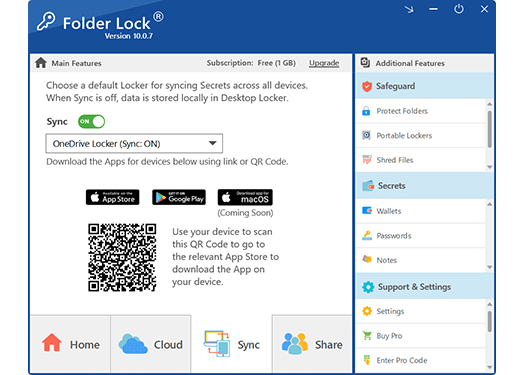
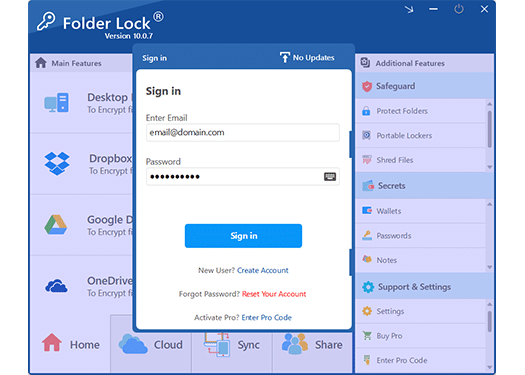 Clean, dashboard-style interface prioritizing ease of use.
Get Folder Lock 10
 Download for Windows
 Download for macOS
 Download for iOS
Other Tools We Reviewed
VeraCrypt (Best Open Source Alternative)
VeraCrypt vs TrueCrypt: VeraCrypt is the spiritual successor to the discontinued TrueCrypt. It is an incredibly powerful, open-source auditing tool favored by privacy purists. It excels at creating hidden volumes with plausible deniability.
Our take: It is the gold standard for free, highly technical encryption, but its interface is intimidating and unforgiving if you lose your volume headers or passwords.
Microsoft BitLocker (Best Built-in Tool)
If you have Windows Pro, Enterprise, or Education, BitLocker is built into your OS. It provides robust full-disk encryption and integrates neatly with your Microsoft account for recovery key backup.
Our take: You should absolutely enable it for full device protection. However, because it unlocks automatically when you log into Windows, it does not protect your files from someone who sits down at your unlocked computer or accesses your device remotely. You still need folder-level protection alongside it.
6. Tutorial: How to Encrypt Folders Fast
If you opt for a file-level solution like our top pick, securing data is straightforward. Here is how the process works using Folder Lock 10:
Create a Master Password
Upon first launch, you will set a single Master Password. This is critical: because there are no backdoors and passwords are not stored on external servers, losing this password means losing access to your data forever.
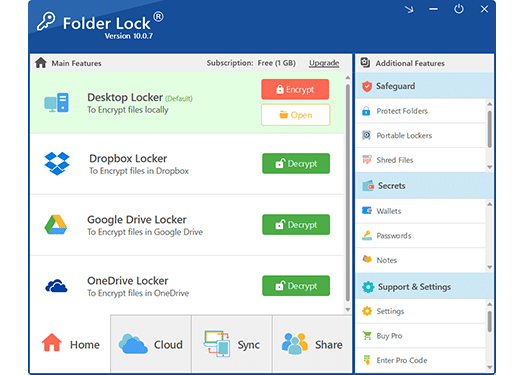
Create a Locker
Navigate to 'Encrypt Files' and create a new "Locker". Think of this as a secure vault. You can set it to automatically resize as you add files, or define a fixed size.
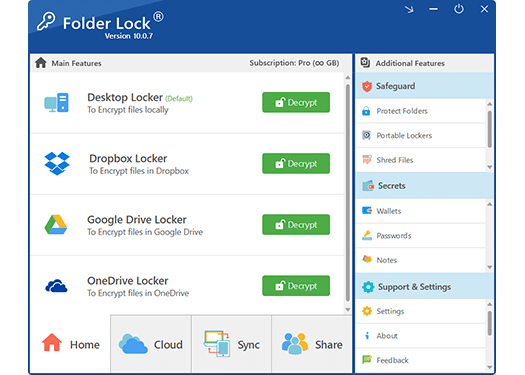
Drag and Drop Files
Open the locker (which mounts as a virtual drive letter, like 'Z:') and simply drag your sensitive files into it. The software uses on-the-fly AES 256-bit encryption as the data moves.
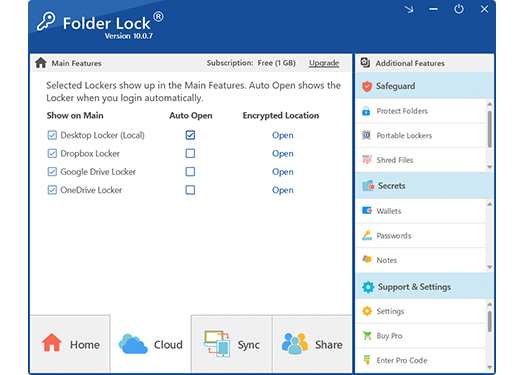
Close and Sync (Optional)
Close the locker to secure it. If you have the cloud sync feature enabled, the encrypted container will securely back up to your Dropbox or Google Drive automatically, giving you off-site protection.
Software Pricing: What You Get
Encryption software ranges from completely free (open-source) to enterprise subscriptions. If you look at commercial options like our recommended tool, Folder Lock 10, here is the editorial breakdown of the costs versus value.
Free Version
Suitable for basic, limited testing.
 Maximum locker size of 1 GB
- Sync across max 2 devices
- No portable USB lockers
 Basic encryption only
Pro Version
Unlocks the complete security suite.
- Unlimited locker size
 Sync across up to 5 devices (mobile included)
- Create portable USB lockers
 Secure file sharing
 Secure Data Shredding
 Windows History Cleaning
Is it worth it? If your primary goal is to securely sync data to the cloud or protect portable drives without fighting command lines, the time saved justifies the annual cost for the Pro version. If you have zero budget, stick to BitLocker for your drive and 7-Zip for basic encrypted archives.
7. Which Method is Right For You?
For the Home User & Student
Goal: Keep personal photos, tax documents, and journals private from roommates or family.
Recommendation: Folder Lock 10. The hide and lock features are instantaneous, and you won't risk accidentally wiping your hard drive during setup.
For the Freelancer / Small Business
Goal: Secure client data, sync securely to cloud storage, and share files safely.
Recommendation: Folder Lock 10 (Pro) or AxCrypt. Folder Lock's cloud sync integration provides an excellent off-site backup strategy.
For the IT Professional / Privacy Purist
Goal: Plausible deniability, comprehensive system lock down, code auditing.
Recommendation: VeraCrypt combined with built-in BitLocker/FileVault. Folder Lock is likely too consumer-focused for this use case.
8. Troubleshooting Common Encryption Problems
Forgot encryption password / how to fix locked files ▼
External drive encryption not working on another PC ▼
BitLocker recovery key forgotten or lost ▼
9. Frequently Asked Questions
VeraCrypt vs BitLocker: Which is safer?
Both use AES-256 and are highly secure. BitLocker is safer against physical theft for average users due to its deep OS integration. VeraCrypt is safer against state-level actors because its open-source nature means code is independently audited for backdoors.
AxCrypt vs Folder Lock: What is the difference?
AxCrypt is heavily focused on individual file encryption and collaboration (key sharing). Folder Lock provides broader security utilities, including secure digital wallets, history cleaning, and portable USB lockers, making it a more comprehensive suite.
What is the best encryption software for Mac?
For full disk, Mac's built-in FileVault is excellent. For file-level encryption and hiding folders, third-party tools or the built-in Disk Utility (creating encrypted sparse bundles) are the best approaches.
Is there any best free encryption software?
Yes. VeraCrypt is entirely free and incredibly powerful. 7-Zip also offers robust AES-256 encryption for archiving files for free. Most commercial tools, like Folder Lock, offer a limited free tier.
Explore the Wider Security Ecosystem
If your privacy requirements extend beyond standard directory encryption, the developers behind our top pick offer a comprehensive suite of specialized protective applications.
10. Our Final Verdict
Securing your data is no longer optional. While relying on built-in OS tools like BitLocker is a great first step for device theft, it falls short for protecting specific files on a running computer, syncing to the cloud safely, or carrying sensitive data on a flash drive.
For its intuitive interface, military-grade AES-256 encryption, and practical features like portable lockers and cloud sync, Folder Lock 10 remains our top recommendation for most Windows users. It takes the complexity out of cryptography, allowing you to secure your data with a simple drag-and-drop workflow.